
Prepping your machine | Win8 Dev Fundamentals Launch
Download Notepad so you can start developing Windows Store Apps… Or, you can also download Notepad++ so you can see colors around the screen…
You’re kidding me right?
Yow whats up guys it’s me, ron, so we’re going to discuss tools today, and help you set up so you can start making those imaginary apps of yours
Of course, I’m kidding, if you can develop Windows Store Apps using Notepad, then please do share it to us, and I’ll give you one biiiig star.
Anyways, so, you’ve finally decided to make apps, but you don’t know where to start. Good timing! I’m starting this series called “Windows 8 Development Fundamentals” which I’ll be posting every week, so you might want to go back here again for new posts. Sooo since everything is in place, let’s get started!
1. Download Windows 8. If you’re an MSDN subscriber, then, I’m assuming you’re running Windows 8 already so, high five! For those who aren’t running Windows 8 yet, you can download the windows 8 evaluation version by clicking this link which will navigate you to Windows 8 evaluation for developers. Note that this version will expire and you cannot upgrade unless you buy it. According to an MVP, there’s a way for you to upgrade to Windows from evaluation version without reverting and reinstalling, in which can be done by running a script.. but let’s not complicate things, the point here is that you shall be running Windows 8 for you to create apps on it.
2. Download Visual Studio. Download Visual Studio by clicking this link by Downloading this, you’re installing Visual Studio, which is the IDE where you do a lot of your coding. And also Blend for Visual Studio. Blend was a part of the Expression Suite before, which Microsoft is retiring – you can see the announcement here, that’s why it’s now called simply “Blend”. As what the name sounds, this is where you express your artistic side. You can do animations from here, and you can also do graphic designs, page transitions, etc. Basically, this tool will make your application more appealing.
3. Get Developer License. Microsoft really loves licensing. But when we talk about license, we often mistakably think, it always involve money. Well, not in this case! getting a developer License is free, once you run your Visual Studio Express for Windows 8 which you downloaded earlier (in #2) When Visual Studio prompts you, follow the prompt to get your license. You can also get your license without running Visual Studio by following the steps in this link.
aaaand Alright! you’re all set! I’ll see you on the next post!
Launching into a new era for Visual Studio
On August 15, 2012 at 10AM Pacific Time, Microsoft announced that MSDN subscribers can download and install Visual Studio 2012.
While Visual Studio 2012 will reach the RTW on August 15, Microsoft will hold a virtual launch event for Visual Studio 2012 on September 12, 2012 from Seattle, WA.
Yow wazzup guys it’s me, ron. So right now, I just want to share with you the newest developer tool Microsoft has just recently released for MSDN subscribers.
For non-MSDN subscribers, .. get one! haha! anyhow, I’ve been receiving a lot of questions regarding this release.. I’ve listed top questions below.. it’s more of like FAQs.. so.. here are my answers 🙂
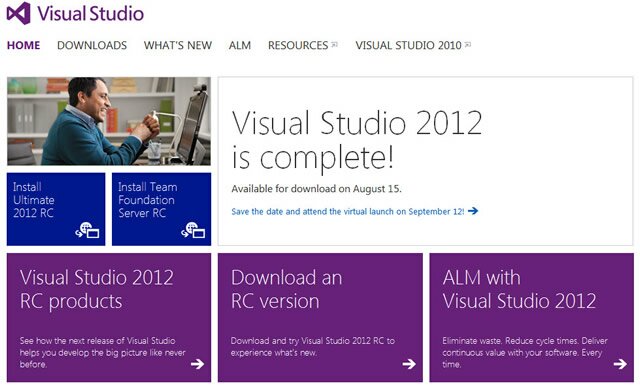
1. What’s new in Visual Studio 2012?
Visual Studio 2012 includes a lot of updates to simplify development experience, promote team collaboration – and doing it effectively of course 🙂 and reach out and delight end-users across a variety of devices.
2. There has been some changes to the Visual Studio SKUs, what is the current line up?
Yes, there has been a lot of feature that was shuffled within different SKUs. Like for instance, the Microsoft Test Manager is now available in Premium, which was a part of Ultimate and Test Professional. Here are the SKUs for Visual Studio 2012:
– Visual Studio 2012 Ultimate
– Visual Studio 2012 Premium
– Visual Studio 2012 Professional
– Visual Studio Team Foundation Server 2012
– Visual Studio Test Professional 2012
Express SKUs have also been simplified so developers can focus more on the latest Microsoft platforms.
– Visual Studio 2012 Express for Web
– Visual Studio 2012 Express for Windows 8
– Visual Studio Team Foundation Server Express 2012
3. What is Application Lifecycle Management (ALM)?
Application Lifecycle Management (ALM) is very different from what we call SDLC or Software Development Life Cycle. These two are different stuff. SDLC only revolves on the development process, whereas ALM revolves on the whole entire cycle. ALM integrates different teams, platforms, and activities, enabling a continuous flow of business value.
4. We have a heterogeneous development environment, how do these tools help me?
With Team Explorer Everywhere, you can take advantage of Visual Studio even with non-Microsoft technologies including Java and Eclipse
5. What is the difference between Team Foundation Server and Team Foundation Service?
They both play central role in the Microsoft ALM story. They are like the backbone of the whole thing. The server is an on-premise solution, while the service is a cloud hosted solution. Team Foundation Service is also in a preview stage so it is subject to change before the release
6. How does Windows 8 development differ from developing for Windows 7?
You can develop desktop apps for Windows 8 with the same technologies that are used for Windows 7. However, what’s cool is that you can also develop Windows Store Apps for use on Windows 8 using your choice of .NET, C++, or HTML5 with JavaScript.
7. Is Silverlight no longer supported?
Silverlight has a 10 year mainstream support lifecycle. Microsoft will continue to provide feature updates; bug fixes and security updates for Silverlight
So yeah, a lot to keep in mind right? should you have any more questions, just comment below, and I’ll try my best to answer it 🙂
Have you downloaded Visual Studio 2012 already? how was it so far?
Fostering Innovation


yow wazzup guyz, it’s me, ron and I’m here to share a bit of my experience in Microsoft’s software factory, the Microsoft Innovation Center (MIC)
As part of my internship with Microsoft, i was given a task to be the MIC Officer-In-Charge in parallel to Victor Tanedo (shoutout to Vivi!). I also Project Manage Windows Phone 7 and Windows 8 software applications developed by MIC to different clients.
We’ve been doing a number of projects concentrating on different Microsoft technologies and i believe we’ve got lots and lots of projects ahead of us. Can’t it be more exciting than this!?
Windows 8 Tablet User Interface REVEALED!

after 2 years of reengineering of Windows 7, Microsoft finally revealed the next generation Operating System, Windows 8!!

yow wazzup guyz, it’s me, ron and im here to give yo guyz a closer look at Windows 8.
this is such a big big news for the consumers since Windows 8 comes with its brand new look and a lot of great functionalities.
here is a post that i read a while ago from Windows8Beta.com:
Steven Sinofsky has finally revealed the new Windows 8 tablet UI at D9, which is very much like the Windows Phone 7 or the Zune interface. Microsoft has also announced for the first time that the next version of Windows is at present internally called as Windows 8. According to All Things Digital Windows 8 essentially supports two kinds of applications. One is the classic Windows application, which runs in a desktop very similar to the Windows 7 desktop.The other type of application, which has to be written in HTML5 and Javascript, looks more like a mobile application, filling the full screen. Internet Explorer 10, which is part of Windows 8, has already been configured to run in this mode, as have several widget-like apps for checking stock prices and weather
The start screen pretty much confirms the upcoming Windows Store and all the apps would be downloaded via it. Sinofsky further clarified that Windows 8 would have Internet Explorer 10 by default which we have mentioned earlier.
The company has posted few aspects of the new interface which was shown today at D9:
■Fast launching of apps from a tile-based Start screen, which replaces the Windows Start menu with a customizable, scalable full-screen view of apps.
■Live tiles with notifications, showing always up-to-date information from your apps.
■Fluid, natural switching between running apps.
■Convenient ability to snap and resize an app to the side of the screen, so you can really multitask using the capabilities of Windows.
■Web-connected and Web-powered apps built using HTML5 and JavaScript that have access to the full power of the PC.
■Fully touch-optimized browsing, with all the power of hardware-accelerated Internet Explorer 10
here is a short video showing the brand new User Interface of Windows 8:
and here is a link of the video of Windows 8 prototypes 😀 <it’s so new, this video is not available to *popular* video hosting sites yet hahaha>
you can also visit Microsoft.com for more info.
so, here are my thoughts about it 😀
first of all, yes! the UI is so cool! but it is not that cool for a mouse/touch pad user like me haha i dont have a tablet pc yet.. good thing there is a mode that i can turn back to the classic mode which is very similar to Windows 7 🙂 hahaha but on a second thought, with a lot of practice and experience, i guess a mouse/touch pad can get through it :D. Last of all, windows 8 is good if you have data with you all the time 🙂 that’s a plus! since you will see all of your updates with just one glimpse 🙂 if you dont have internet connection.. too bad!! hahaha 😀
so guyz, what are your thoughts? 😀

 Exatron