
Prepping your machine | Win8 Dev Fundamentals Launch
Download Notepad so you can start developing Windows Store Apps… Or, you can also download Notepad++ so you can see colors around the screen…
You’re kidding me right?
Yow whats up guys it’s me, ron, so we’re going to discuss tools today, and help you set up so you can start making those imaginary apps of yours
Of course, I’m kidding, if you can develop Windows Store Apps using Notepad, then please do share it to us, and I’ll give you one biiiig star.
Anyways, so, you’ve finally decided to make apps, but you don’t know where to start. Good timing! I’m starting this series called “Windows 8 Development Fundamentals” which I’ll be posting every week, so you might want to go back here again for new posts. Sooo since everything is in place, let’s get started!
1. Download Windows 8. If you’re an MSDN subscriber, then, I’m assuming you’re running Windows 8 already so, high five! For those who aren’t running Windows 8 yet, you can download the windows 8 evaluation version by clicking this link which will navigate you to Windows 8 evaluation for developers. Note that this version will expire and you cannot upgrade unless you buy it. According to an MVP, there’s a way for you to upgrade to Windows from evaluation version without reverting and reinstalling, in which can be done by running a script.. but let’s not complicate things, the point here is that you shall be running Windows 8 for you to create apps on it.
2. Download Visual Studio. Download Visual Studio by clicking this link by Downloading this, you’re installing Visual Studio, which is the IDE where you do a lot of your coding. And also Blend for Visual Studio. Blend was a part of the Expression Suite before, which Microsoft is retiring – you can see the announcement here, that’s why it’s now called simply “Blend”. As what the name sounds, this is where you express your artistic side. You can do animations from here, and you can also do graphic designs, page transitions, etc. Basically, this tool will make your application more appealing.
3. Get Developer License. Microsoft really loves licensing. But when we talk about license, we often mistakably think, it always involve money. Well, not in this case! getting a developer License is free, once you run your Visual Studio Express for Windows 8 which you downloaded earlier (in #2) When Visual Studio prompts you, follow the prompt to get your license. You can also get your license without running Visual Studio by following the steps in this link.
aaaand Alright! you’re all set! I’ll see you on the next post!
Version Control: The ungeeky way

yow wazzup guys it’s me, ron, and yes, it’s been a while. I’ve been busy lately cuz I just hop into another chapter of my life .. haha
Now that I’m settled in, I’d like to welcome you to a brand new web series, Application Lifecycle Management.
In reference to betterexplained.com, I saw this post and I find it really informative. I’d just like to share it with you guys.
To start, what is Version Control?
Version Control (aka Revision Control aka Source Control) lets you track your files over time. Why do you care? So when you mess up you can easily get back to a previous working version pronto!
You have probably been doing this so called “Version Control System” without realizing it had such a geeky name. Got any files like this?
- RonResume-Feb2011.doc
- RonResume-March2011.doc
- exatron-logo2.png
- exatron-logo3.png
- exatron-logo-old.png
So again, why do we need a Version Control System (VCS)?
Well, our naming system works fine for class projects, or one-time papers. But Software projects? not a chance.
Can you imagine Windows source code sits in a shared folder like “Windows8-latest-UPDATEDFINAL!!!-RC”, for anyone to edit? that’s ridiculous
Large, fast-changing projects that has many authors need a Version Control System (geek version of “file database”) to track changes and avoid general chaos. A good VCS does the following:
- Backup and Restore. Files are saved as they are edited, and you can jump to any moment in time. Need that file as it was on April 15, 1992? No problem.
- Synchronization. Lets people share files and stay up-to-date with the latest version.
- Short-term and Long-term undo. Sometimes, we mess up a file big-time. suppose you made a change a year ago, and it had a bug. Jump back to the old version, and see what change was made that day. Or if you are just toying with a new version of your file, and again, you made a bug out of it, throw away your changes and go back to the “last known good” version.
- Track changes. As files are updated, you can leave messages explaining why the changed happened. This makes it easy to see how a file is evolving over time, and why.
- Track ownership. A VCS tags every change with the name of the person who made it. Helpful for
blamestorminggiving credit. - Branching and merging. You can branch a copy of your code into a separate area and modify it in isolation. Later, you can merge your work back into the common area.
Shared folders are quick and simple, but can’t beat these features.
Let’s go to the things you should know to master Version Control:
1. Checkins
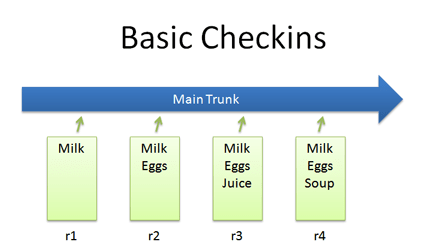
- The simplest scenario is by checking in a file and modifying it over time
- Each time we check in a new version, we get a new revision(r1, r2, r3, etc.)
2. Checkouts and Editing
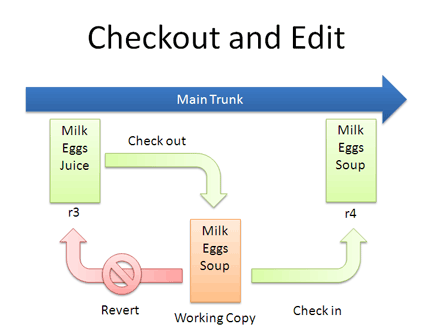
- In reality, you might not keep checking in a file. You may have to checkout, edit, and checkin. The cycle looks like the figure above
- If you don’t like your changes and want to start over, you can revert to the previous version and start again (or stop). When checking out, you get the latest revision by default. If you want, you can specify a particular revision.
3. Diffs
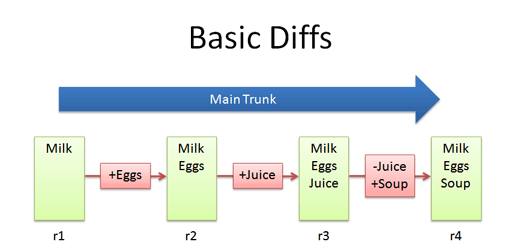
- The trunk has a history of changes as a file evolves. Think of it as the main file. Diffs are the changes you made while editing: imagine you can “peel” them off and apply them to a file as shown above.
- For example, to go from r1 to r2, we add eggs (+Eggs). Imagine peeling off that red sticker and placing it on r1, to get r2.
- And, to get from r2 to r3, we add Juice (+Juice). To get from r3 to r4, we remove Juice and add Soup (-Juice, +Soup).
- Most version control systems store diffs rather than full copies of the file. This saves disk space: 4 revisions doesn’t mean we have 4 copies; we have 1 copy and 4 small diffs. Pretty nifty right?
- Now that we have that, what is the diff from r1 to r4?……………. Notice how “Juice” wasn’t even involved – the direct jump from r1 to r4 doesn’t need that change, since Juice was overridden by Soup.
4. Branching
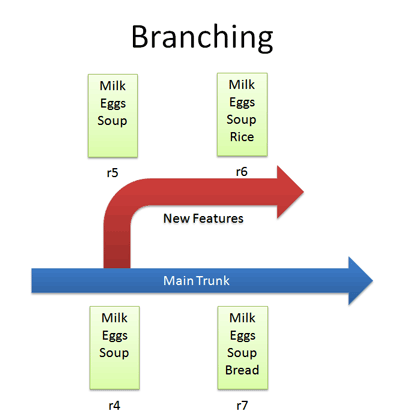
- Branches let us copy code into a separate folder so we can toy around with it separately.
- For example, we can create a branch for new, experimental ideas for our list: crazy things like Rice, or Eggs, or waffles. Depending on the version control system, creating a branch may change the revision number.
- Now that we have a branch, we can change our code and work out the kinks. (“Hmmm… waffles? I don’t know what the boss will thin. Rice is a safe bet.”) Since we’re in a separate branch, we can make changes and test in isolation, knowing that our changes wont hurt anyone. and our branch history is under version control.
- So branching isn’t too tough of a concept: Pretend you copied your code into a different directory. You’ve probably branched your code in shool projects, making sure you have a “fail safe” version you can return to if things blow up.
5. Merging
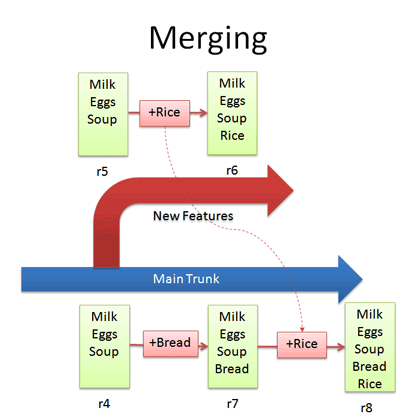
- Branching sounds simple, right? Well, It’s not – figuring how to merge changes from one branch to another can be tricky.
- Let’s say we want to get the “Rice” feature from our experimental branch into the mainline. How would we do this? Diff r6 and r7 and apply that to the main line?Wrongo. We only want to apply the changes that happened in the branch! That means, we diff r5 and r6 and apply that to the main trunk.
- If we diffed r6 and r7, we would lose the “Bread” feature that was in main. This is a subtle point – imagine “peeling off” the changes from the experimental branch (+Rice) and adding that to main. Main may have had other changes, which is ok – we just want to insert the Rice feature.
- But what if we add (+Rice) in the diff between r4 and r7? which (+Rice) will be added to r8? will it be from the diff between r4 and r7? or the diff between r5 and r6? This is where “Conflicts” come into picture. We want to avoid conflicts as much as possible. To avoid conflicts, always get the latest version from the trunk before merging it to the main branch. With this, we will be adding the diff between the branch and the latest version of the trunk.
6. Conflicts
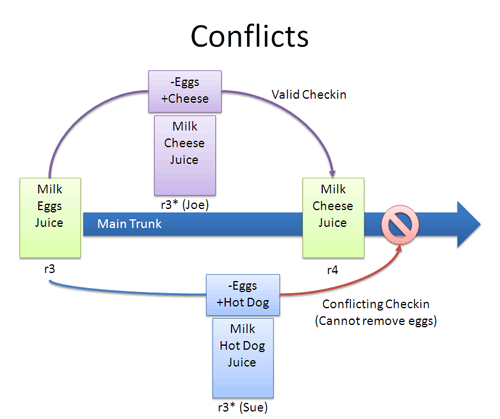
- Now, this is the tricky part. As we’ve mentioned before, conflicts really can occur. But no worries! we can resolve it and remove that conflict
- Many times, the VCS can automatically merge changes to different parts of a file. Conflicts can arise when changes appear that don’t work together: Joe wants to remove eggs and replace it with cheese (-eggs, +cheese), and Sue wants to replace eggs with a hot dog (-eggs, +hot dog).
- At this point, it’s a race: if Joe checks in first, that’s the change that goes through (and Sue can’t make her change).
- When changes overlap and contradict like this, the VCS may report a conflict and not let your check in – it’s up to you to check in a newer version that resolves this dilemma. A few approaches you might want to consider:Re-apply your changes. Sync to the latest version (r4) and re-apply your changes to this file: Add hot dog to the list that already has cheese.
Override their changes with yours. Check out the latest version (r4), copy over your version, and check your version in. In effect, this removes cheese and replace it with hot dog. - Conflicts are infrequent but can be a pain. Usually, I update to the latest and re-apply my changes.
7. Tagging
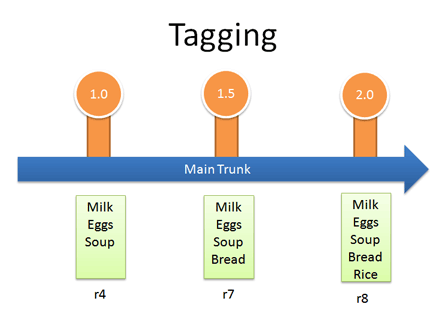
- Many VCSS can let you tag (label) any revision for easy reference. This way you can refer to “Release 1.0” instead of a particular build number.
Real-life example: Managing Windows Source Code
We guessed that Windows was managed out of a shared folder, but it’s not the case. So, how’s it done?
- There is a main line with stable builds of Windows.
- Each group (Networking, User Interface, Media Player, etc.) has its own branch to develop new features. These are under development and less stable than main
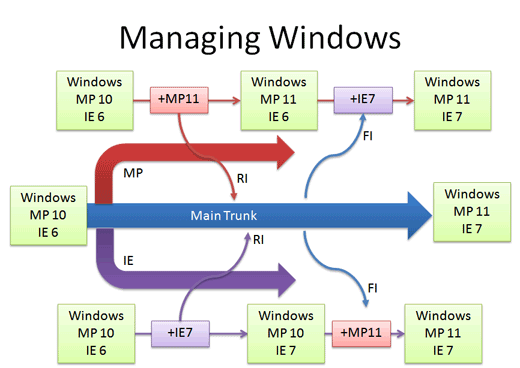
You develop new features in your branch and “Reverse Integrate (RI)” to get them into Main. Later, you “Forward Integrate” and to get the latest changes from Main into your branch.
Let’s say we’re at Media Player 10 and IE 6. The Media Player team makes version 11 in their own branch. When it’s ready and tested, there’s a patch from 10 – 11 which is applied to Main (just like the “Rice” example, but a tad more complicated). This a reverse integration, from the branch to the trunk. The IE team can do the same thing.
Later, the Media Player team can pick up the latest code from other teams, like IE. In this case, Media Player forward integrates and gets the latest patches from main into their branch. This is like pulling in the “Bread” feature into the experimental branch, but again, more complicated.
In reality, there’s many layers of branches and sub-branches, along with quality metrics that determine when you get to RI. But you get the idea: branches help manage complexity. Now you know the basics of how one of the largest software projects is organized.
References:
DEMO EXPO: MSPs on the LOOSE
16 chosen MSPs, 13 different destinations all around the Philippines, 1 whole month of fun and excitement….
DEMO EXPO: MSPs on the LOOSE!!

yow wazzup guyz, its me, ron and im here to give you a ground breaking news, fresh from Microsoft Philippines 🙂
In partnership with Acer, Microsoft Philippines will be sending out 16 MSPs to evangelize Windows Live Essentials to 13 different destinations in Luzon, Visayas and Mindanao. The specified event is entitled, Windows Live DEMO EXPO.
One of the objectives of this event is to drive traffic to the Acer Dream Concept Stores – 7 in Metro Manila, 1 in Tarlac, 3 in Visayas, and 2 in Mindanao. The event is also expected to increase the sales of the participating Acer laptops pre-installed with Windows 7 and of course to promote Microsoft’s Free Software and the benefit that Windows Live Essentials lets you do more with your laptop.
Microsoft will also be giving out a FREE laptop bag once you attend a FREE 20-minute demonstration delivered by the MSPs. it’s that simple, you already got a laptop bag! The demo attendees will be taught how to use Windows 7 and Windows live Essentials. These come pre-installed with every purchase of participating Acer laptops.
In addition, Windows Live Movie Maker will be highlighted in the demo cuz there will be a video contest for those who will buy an Acer Laptop. Microsoft will be giving out a Video camera for the 1st placer, Digital camera for the 2nd placer and a cool Headset for the 3rd placer. but wait, there’s more! 😀 Microsoft will also be giving out 10 consolation prizes (Microsoft premium items) 😀
the 16 MSPs will be deployed to 13 different areas all around the Philippines to reach out the targeted audiences..

this is such a breakthrough for us since we are finally going to face the end users.. we’ve got to prepare for this and make this event a successful one \m/ oh yeah!
Internet Explorer 9 Update 1.O – the IE9 Release Candidate!!!
Yow wazzup guyz its me, ron and im here to give you an Internet Explorer 9 update!!!
and yes, its another VLOG.. hope you guyz like it.. xD watch me \m/
References:
Internet Explorer 9 Facebook Fanpage
Download Internet Explorer 9!!

just to add up, ill be updating you guyz whenever i got sum news about IE9. so get your heads up and stay tuned for more 😀
thanks again! cya guyz nxt tym 😉 \m/

 Exatron